A pay-per-use Search Console tool for when Google's free one isn't enough
Google Search Console is free. Here's what a pay-per-use Search Console tool adds, what it costs per report, and when you're better off with Google's own.
- Google Search Console is free, and for one site it's often all you need.
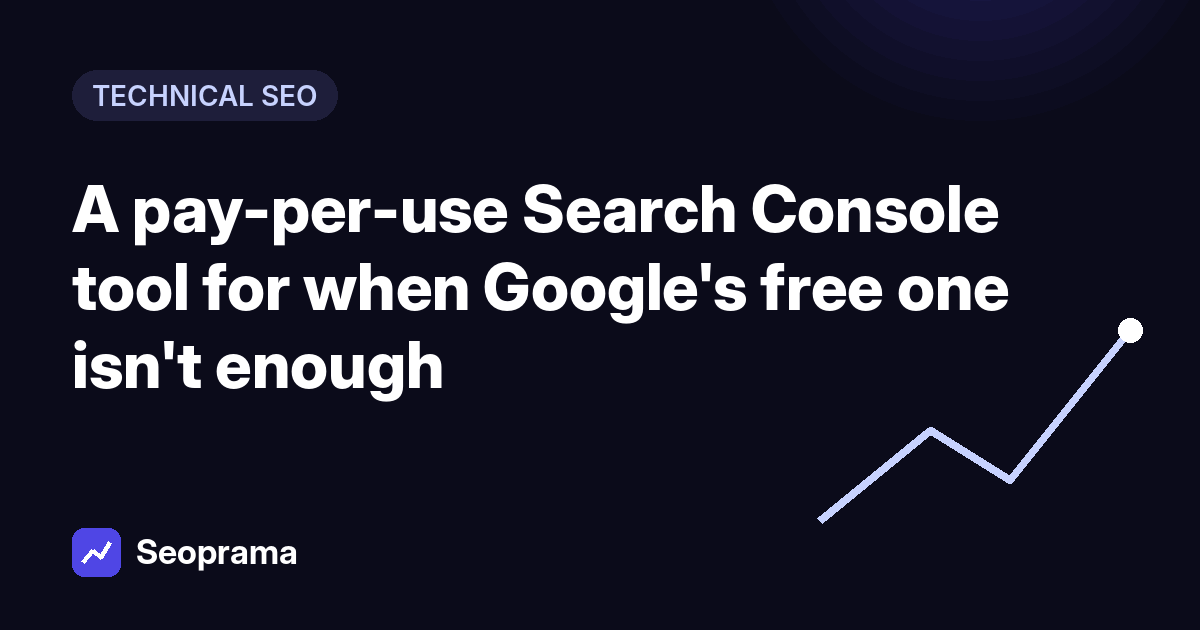
- Seoprama's Search Console insights costs about 5 credits a report (roughly $0.02), and the app shows that before you load it.
- You get clicks, impressions, CTR and position by query and page, 7 days to 3 months, filtered by device, country or text, with export.
- What you're paying for is seeing that data next to your tracked rankings, keyword research and client reports, with no monthly plan.
- A freelancer checking five clients weekly spends about 400 credits a month, around $1.27 at $19 pack rates.
Let’s get the awkward bit out of the way first. Google Search Console costs nothing. If you’re looking for a pay per use Search Console tool, you’re not looking for the data itself. You already have it.
What you’re probably after is a way to see that data next to everything else you track for a client, without signing up to a monthly SEO suite just to get it. That’s what this post covers: what Seoprama’s Search Console insights does, what it doesn’t do, what it costs per report, and when Google’s own interface is the better choice.
Search Console is free, so what are you paying for?
Fair question. Here’s the honest answer.
Google gives you clicks, impressions, click-through rate and average position for every query and page on a site you own. That’s real data from Google, and no paid tool has better numbers than that. Seoprama doesn’t either. It reads the same data through your Google account.
So the 5 credits buy you three things:
- Your Search Console numbers in the same place as your other SEO data. Tracked rankings, keyword research and audits sit one click away instead of in another tab with another login.
- A Search Console card for client reports. The report builder can pull clicks and queries straight into a monthly report.
- No plan required. You pay a few credits when you load a report, and nothing in the months you don’t.
If none of those matter to you, stop here and keep using Google’s free interface. I mean that. For a single site you look at once a month, it’s fine.
What Seoprama’s Search Console tool shows you
Here’s what’s in the Search Console insights tool today, straight from its feature list:
- The four core numbers. Clicks, impressions, CTR and average position.
- Queries and pages tabs. See which searches bring people in, and which pages they land on.
- Three date ranges. The last 7 days, 28 days or 3 months.
- Filters. By device, by country, or by text in the query or page.
- Export. Download the rows for a spreadsheet or a report.
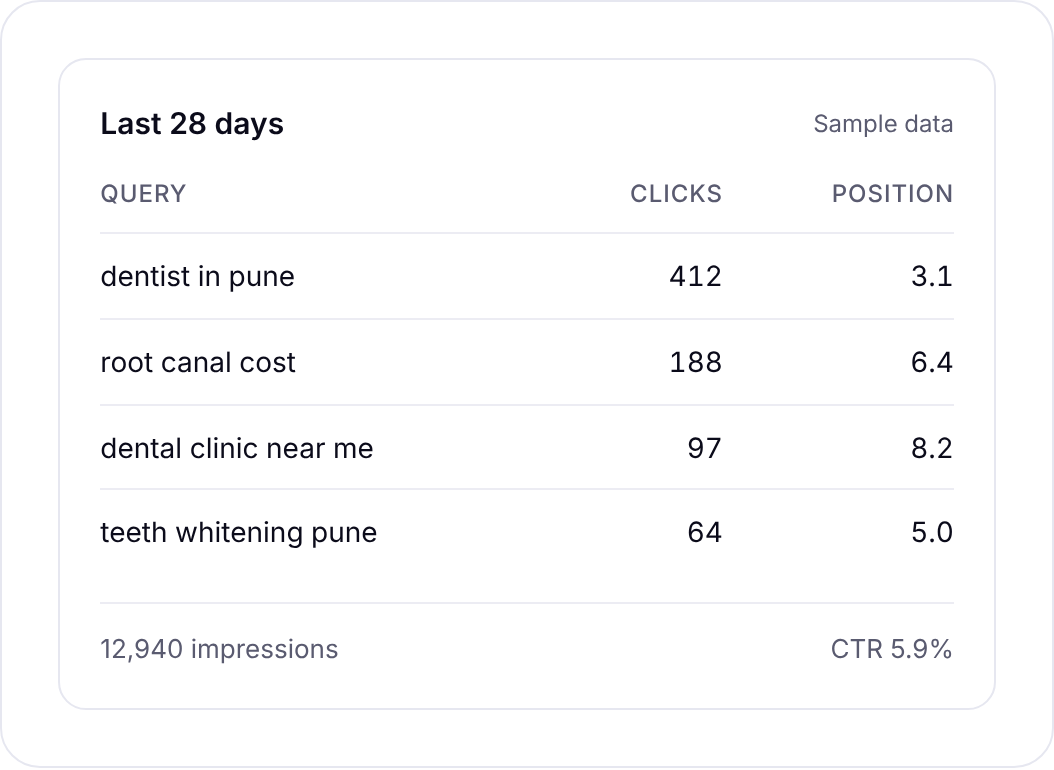
You connect it once, using a Google account that already has access to the property in Search Console. After that, every report you load uses that connection.
The text filter is the one I use most. Type the brand name and you see branded searches on their own. Exclude it in your head (or in the export) and you’re looking at the searches where the client actually had to compete. Those are the numbers that tell you whether the SEO work is paying off.
What it doesn’t do (yet)
This part matters, because “Search Console tool” can mean a lot of things. Seoprama’s version is a reporting view of performance data. It isn’t a replacement for everything inside Google’s own Search Console.
Things you won’t find in it right now:
- Indexing and coverage reports. For “why isn’t this page indexed?”, go to Google’s interface.
- URL inspection, sitemaps and removals. Same again. Those stay in Search Console.
- Core Web Vitals and other experience reports. Not in the tool.
- More than 3 months of data in one view. Google keeps longer history. If you need a year-on-year view, pull it from Google directly.
- Automatic “quick wins” lists or alerts. You can export and sort the data yourself, but the tool page doesn’t list a built-in opportunity finder or email alerts, so don’t count on one.
I’d rather you knew that before spending a credit. If your daily work is fixing indexing problems, you’ll live in Google’s interface whatever you buy. If your work is explaining traffic to a client next to the rankings you track, this is where the tool earns its keep.
About 21 keyword searches, or a few searches plus a backlink lookup and a week of rank tracking. No monthly plan, and credits never expire.
What a month of Search Console checks costs
Each report is about 5 credits. A “report” here means each time you load the data or change its dates or filters. So switching from 28 days to 3 months is another report, and so is filtering to mobile.
That sounds fiddly, but at this price it barely matters. On the $19 pack (6,000 credits), 5 credits is roughly $0.02. You’d need 1,200 reports to use up that pack on Search Console alone.
Here’s a realistic month for a freelancer. It’s a hypothetical example: five clients, one check-in each a week, and three filter or date changes per check-in.
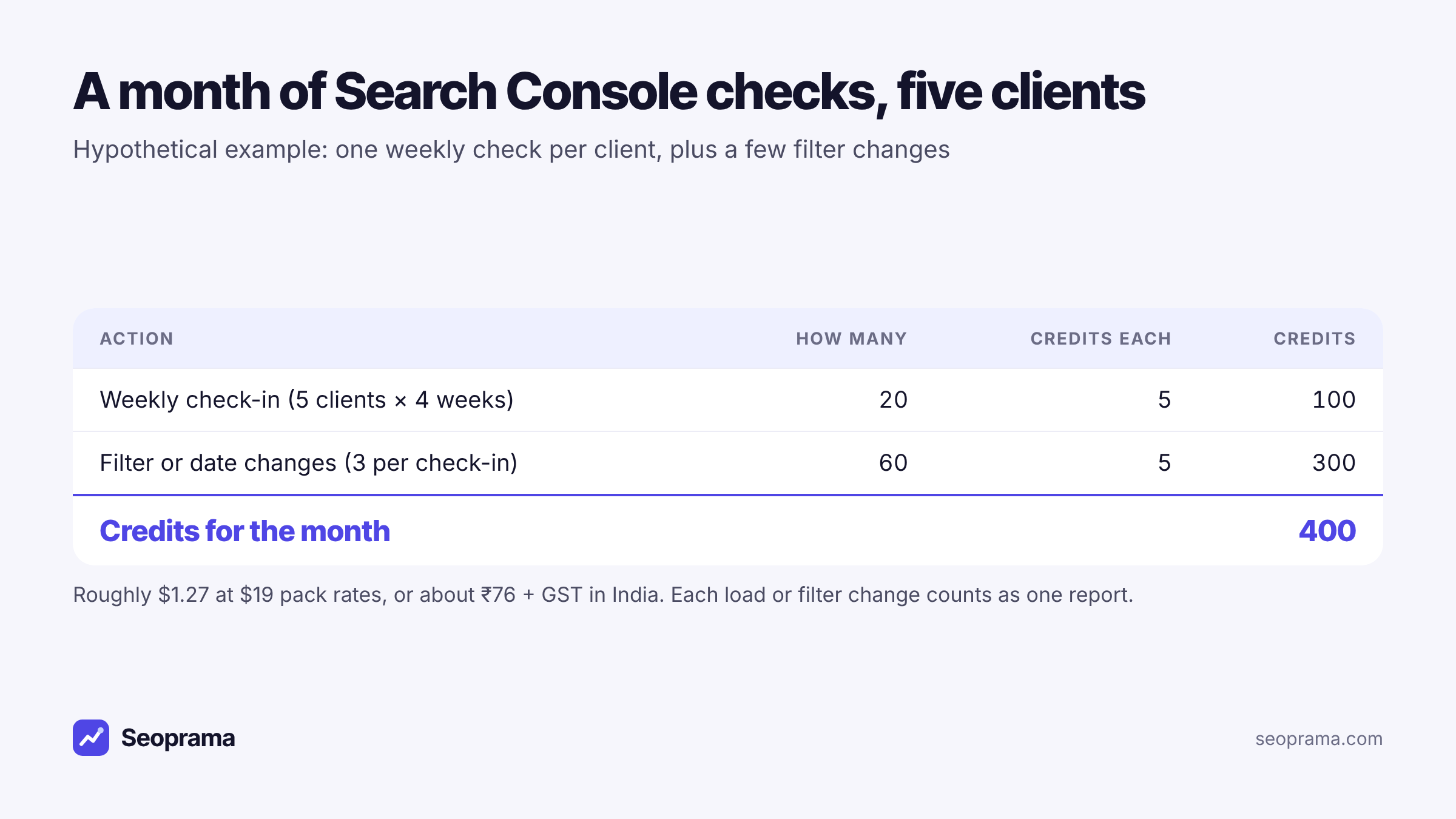
| Usage | Reports | Credits | Roughly, at $19 pack rates |
|---|---|---|---|
| One client, checked monthly, 3 views | 3 | 15 | under $0.05 |
| One client, checked weekly, 4 views each | 16 | 80 | $0.25 |
| Five clients, checked weekly, 4 views each | 80 | 400 | $1.27 |
In India, the ₹549 + GST pack has 2,900 credits, so the five-client month above is about ₹76 + GST.
And the app shows the credit cost of each action before you run it. You won’t find a surprise on the balance at the end of the month.
Most freelancers I know overcheck Search Console. Daily looks feel productive, but a week of data for a small site is mostly noise. Weekly for active clients and monthly for the quiet ones is plenty, and it keeps the credit spend tiny.
Running your first report, step by step
Here’s the flow from a fresh account.
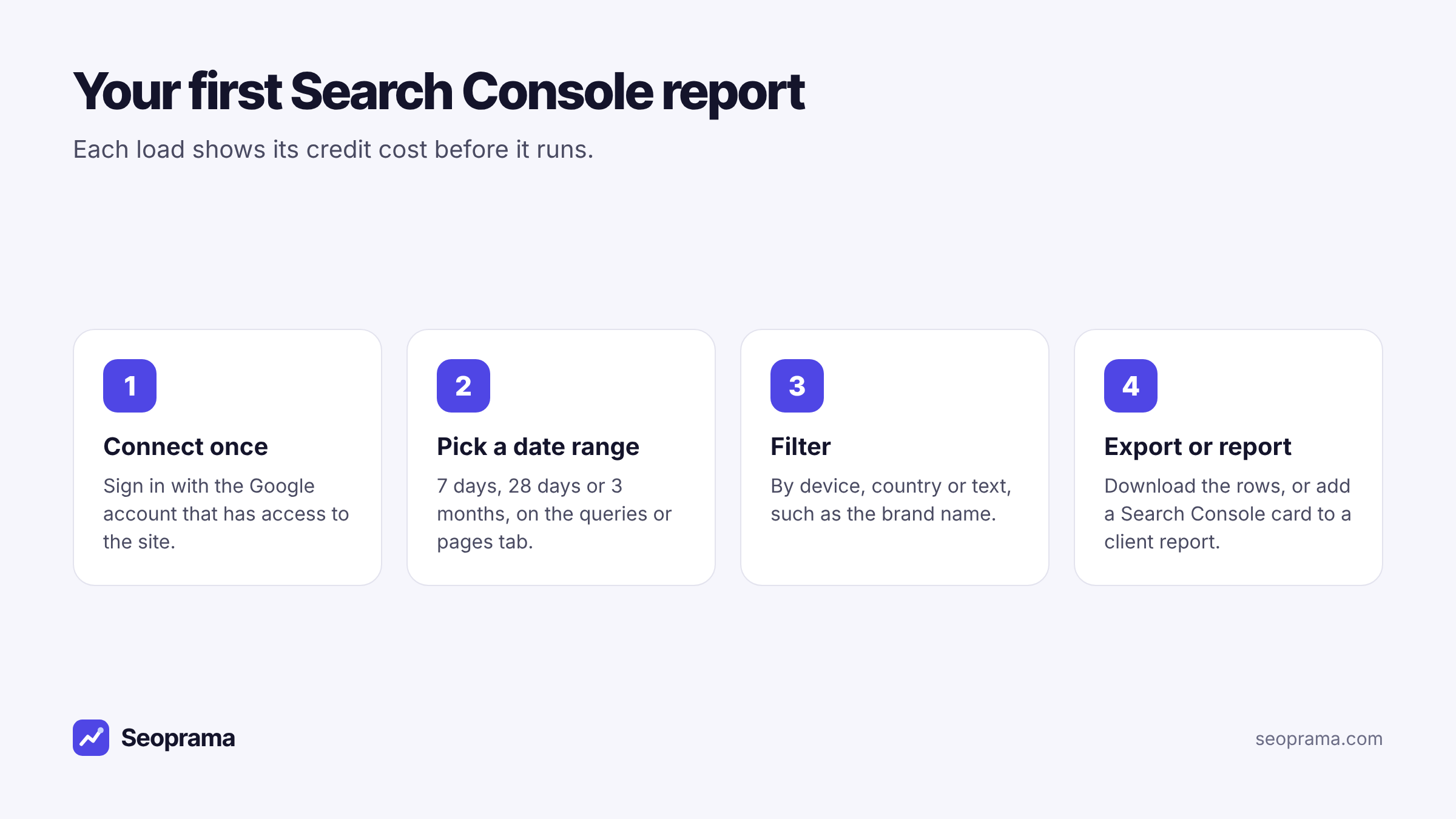
1. Connect Search Console once. Sign in with the Google account that can see the site in Search Console. If a client owns the property, ask them to add your Google account as a user first. That’s the step that usually holds things up, so send the request on day one.
2. Pick the date range. Start with 28 days. It smooths out weekday swings and is long enough to show a trend for a small site. Use 3 months when you’re explaining a change to a client.
3. Open the queries tab, then the pages tab. Queries tell you what people searched. Pages tell you where they landed. When a client says “traffic is down”, the pages tab usually shows you which one or two pages lost it.
4. Filter with a purpose. Mobile against desktop if the client’s audience is local and on phones. Country if they sell in one market but get impressions from everywhere. Text for brand against non-brand.
5. Export or add it to a report. Download the rows for your own analysis, or add a Search Console card in the report builder.
Five views like that is 25 credits. Under a dime.
Five checks worth 5 credits each
When you load a report, have a question in mind. Here are the ones I’d ask for a typical small-business client.
Which non-brand queries bring clicks? Filter out the brand with the text filter and look at what’s left. That’s the honest measure of SEO progress. Branded clicks mostly track how well-known the business is.
Which queries get impressions but few clicks? Export 3 months of queries, sort by impressions in Sheets, and look at the CTR column. A query with thousands of impressions and a low CTR often means a weak title, or a page sitting on page two. Both are fixable.
Which queries sit around positions 8 to 15? Still in the export, filter average position. These are the queries closest to page one, and a content update or a few internal links can tip them over.
Is mobile behaving differently? Load the same range filtered to mobile, then desktop. A big position gap between the two is worth a look at the mobile page.
Which page lost the clicks? When traffic drops, compare the pages tab across two ranges. Usually it’s one page, not the whole site.
None of this needs a monthly suite. It needs the data and a spreadsheet.
Putting real clicks next to tracked rankings
This is where a paid view of free data starts to make sense.
Search Console shows an average position across every search where your page appeared. That’s useful, but it blends locations, devices and days together. A rank tracker checks specific keywords in a specific place on a schedule. The two answer different questions, and they’re most useful side by side.
Say you run SEO for a dental clinic in Pune (a made-up example). Your keyword rank tracker says “root canal cost” moved from 9 to 5 in the city this month. Search Console says clicks on that query went up. Now you have a story you can tell the client with confidence.
Or the opposite. Rankings dropped for a keyword, but Search Console clicks held steady. That’s usually a sign the drop was in a location or device that doesn’t matter much, and you can calm the client down before they panic.
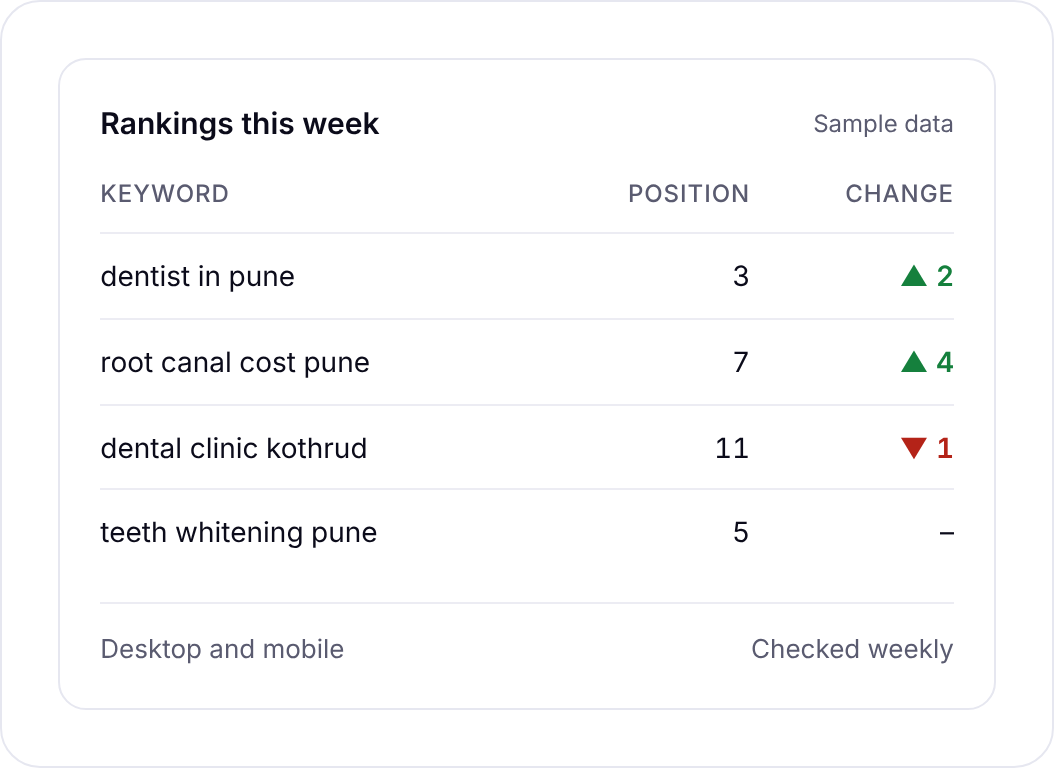
Weekly rank tracking costs 6 credits per keyword per month in the top 30, so 50 keywords is 300 credits a month. Add your Search Console checks and you’re still well under a single $19 pack for a small client. If you need to find new keywords to track, keyword research is 46 credits a search.
Up to 1,000 keywords per tracker with no tiers. A keyword checked weekly uses 6 credits a month.
When Google’s free interface is enough
I’d skip a paid tool for Search Console entirely if:
- You manage one site and only look at it once a month.
- Your work is mostly technical: indexing, sitemaps, page experience.
- You don’t send client reports, or the client already logs into Search Console themselves.
- You need more than 3 months of history in one view.
Search Console data is also included in Ahrefs and Semrush plans, and in Ahrefs Webmaster Tools, according to the comparison on seoprama.com. If you already pay for one of those, you don’t need another way to see the same numbers.
The case for pay-per-use is narrower and simpler. You’re a freelancer or a small team. You track rankings and do keyword research for a handful of clients. You want Search Console data in the same workspace and in your monthly reports, and you don’t want a monthly plan to get it.
Pay per use against a monthly plan
Monthly suites include Search Console views in their plans. According to the comparison on seoprama.com, Ahrefs Lite is $129 a month and Semrush plans start from about $140 a month. Those plans include far more than Search Console: bigger keyword and backlink databases, and features Seoprama doesn’t have. If you use them heavily, they can be worth it.
But nobody should pay $129 a month to look at data Google gives away. On a credit model, the Search Console part of your bill is a rounding error, and the rest is whatever rank tracking, keyword research or audits you actually ran that month.
Credits never expire, so a quiet month costs nothing and a busy month uses what you bought earlier. There’s no monthly minimum, and teams share one balance with no seat fees. You can compare packs and optional plans on the pricing page.
The fastest way to see if it fits is the $2.99 trial. It gives you 1,000 credits, which is 200 Search Console reports, or a few reports plus a keyword search, a backlink lookup and a week of rank tracking for one client. In India the trial is ₹99 + GST for 700 credits. It’s once per account.
Buy credits once and spend them only when you run something. Bigger packs give more credits per dollar.
Frequently asked questions
Is there a pay-per-use Search Console tool?
Yes. Seoprama’s Search Console insights costs about 5 credits a report, roughly $0.02 at $19 pack rates, with no monthly plan. Each time you load a report or change its dates or filters counts as one report.
Why pay for Search Console data when Google’s tool is free?
You don’t have to. Google’s interface has the same performance data. The paid view puts it next to your tracked rankings, keyword research and client reports in one place, and lets you add a Search Console card to a monthly report.
What Search Console data does Seoprama show?
Clicks, impressions, click-through rate and average position, on queries and pages tabs. You can choose 7 days, 28 days or 3 months, filter by device, country or text, and export the rows.
Can I check indexing or Core Web Vitals in Seoprama’s Search Console tool?
No. The tool shows search performance data only. For indexing, URL inspection, sitemaps and page experience reports, use Google Search Console directly.
What do I need to connect Search Console?
A Google account with access to the site in Search Console. You connect it once. If a client owns the property, ask them to add your account as a user.
Can I try it before buying credits?
Yes. The $2.99 trial gives you 1,000 credits, enough for 200 Search Console reports or a mix of tools. In India it’s ₹99 + GST for 700 credits.